
The label you stick on a bin decides how the inventory actually gets used. A good label gets scanned or read at a glance. A bad one gets ignored, peeled off, or replaced with a Sharpie scribble within three months.
Most inventory tools give you one format: a QR sticker at a preset size, take it or leave it. OpenBin prints three. Labels with QR codes, name cards without them, and paper item lists you can check off with a pen. All three run off the same bin data, and each one fits a different situation.
This post walks through when to use each mode, the four label styles inside QR mode, and the customization options that matter in practice.
Key takeaways
- OpenBin prints three formats: QR labels, name cards, and item lists
- Four QR label styles cover colored cards, thermal-friendly plain QR, icon-only, and text-only
- Name cards work when scanning is awkward: drawer fronts, kids' rooms, pet-proof locations
- Item lists double as packing checklists, insurance records, or audits
- Custom sizes, QR styles, and saved presets make repeat printing one click
Why does the bin label format matter?
Storage bins share one property: the labels on them outlive whatever you first wrote down. You label a tote "camping gear" in April. You pack the camping stove somewhere else in October. The label still says "camping gear" and now it's lying about two things.
A QR code label fixes that. The sticker is permanent, the contents update in the app, and scanning the code shows whatever's actually inside right now. Every scan also registers as a usage event, so the same label doubles as a tracker for which bins you actually open — see how QR scans become an activity heatmap. But a QR sticker isn't always the right call. Sometimes you want a big visible name. Sometimes you want a paper list you can check off with a pen.
The thermal printing market is $45.49 billion in 2026 and growing at a 4.32% CAGR, and mini label printers are showing up in homes alongside warehouses. Avery still dominates sheet-label paper with more than 3,000 material, shape and size combinations. The printing hardware is there. The question is what to print.
Which print mode fits which bin?
| Mode | What it prints | When it wins |
|---|---|---|
| Labels | QR code + bin info on stickers | Default. Scan-to-see-contents stickers for bins you access regularly. |
| Names | Grid of bin names, no QR | Drawer fronts, shelf edges, anywhere people won't want to scan. |
| Item List | Paper inventory of bin contents | Packing lists, insurance records, audits, donation inventories. |
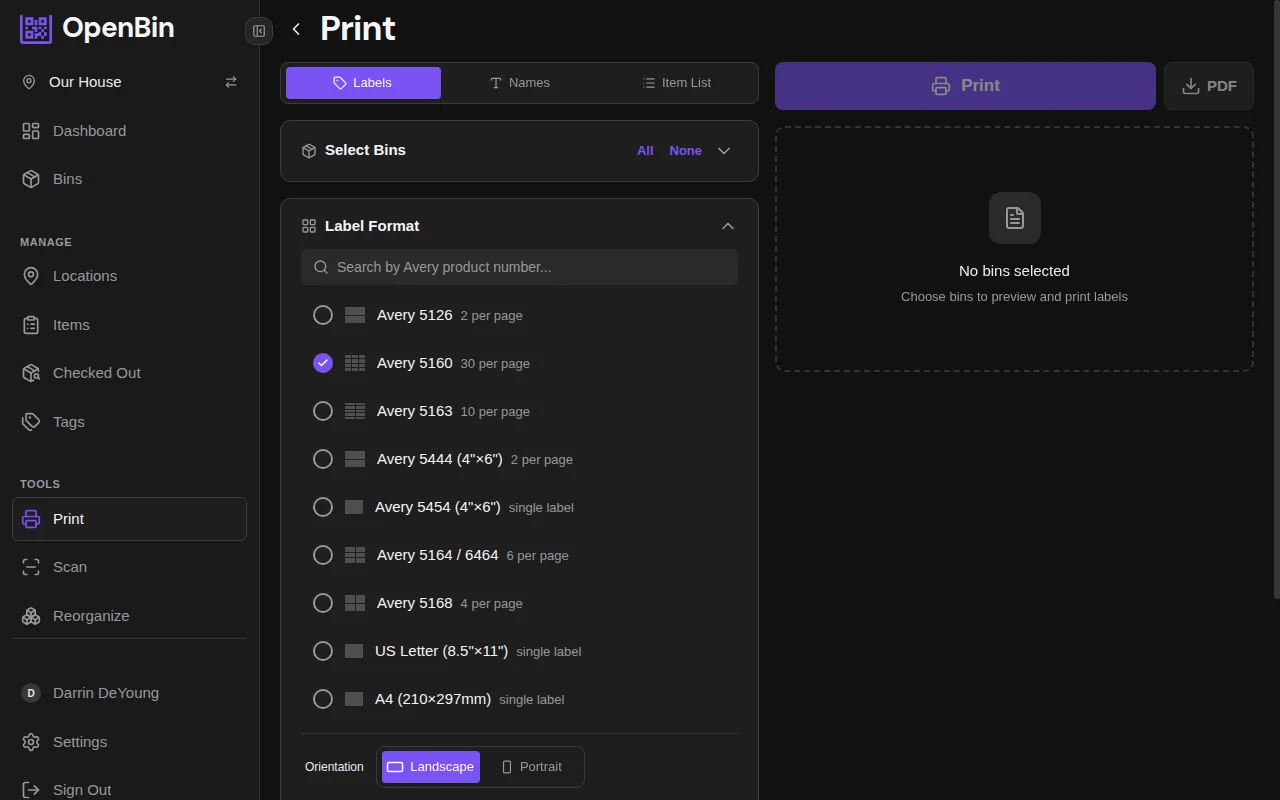
You switch between them with a single toggle at the top of the print screen. The left panel stays the same (bins grouped by area with checkboxes), so you can select bins once and reprint in a different format without redoing the selection.
The preview updates live. Change a setting, watch the preview redraw.
Which QR label style scans best?
Inside Labels mode, OpenBin has four distinct visual styles. They exist because the right label for a toolbox in the garage is not the right label for a rental unit you're auditing quarterly.
Colored card. The default. Full-color sticker with the bin's icon, name, a preview of the first few items, and the QR code. Matches the card style and color you assigned to the bin in the app, so a red "Holiday Lights" bin prints red. Best for bins you access regularly and want to identify visually before scanning.
Plain QR. Black and white, minimal. QR code, bin name, and the short code. Designed for thermal printers and people who don't want to burn through color ink on a 30-sticker sheet. Also the most scan-reliable style. Nothing fancy to confuse a phone camera in dim light.
Icon-only. Large bin icon with the name underneath. No QR code. Works for large, clearly-labeled storage where you want to identify a bin across the room. Think bulk bins in a workshop where scanning each one isn't efficient.
Text-only. Just the bin name and items list as plain text. No QR, no icon. Useful for shelf-edge labels or for printing inventory sheets you can tape inside a cabinet door.
Most users pick one style per household and stick with it. A few people mix: colored cards for the garage bins, plain QR for a thermal-printed label inside a drawer.
When do name cards beat QR codes?
Name cards print a grid of bin names without QR codes. They surprise people at first. Why would I want a label I can't scan?
A few reasons come up often.
Drawer fronts and shelf edges. A QR on a drawer reads the bin inside, but a visible name is faster for anyone walking past. Same for shelf edges in a pantry or a craft room. You want the name at eye level, not a code.
Shared spaces. Not everyone in the house wants to scan. A name card that says "Art Supplies" works for the six-year-old who can't open the app. People with the app installed still scan the QR on the bin itself for the full inventory.
Pet-proof locations. Labels low to the ground get chewed. A plain replaceable name card costs less than a detailed colored label when you know something's going to destroy it.
Rental units and guest spaces. Self-storage units, rental properties, office supply closets. Names communicate to people who've never seen your inventory. A QR assumes the scanner wants to open the app; a name just says what's there.
The Name Options card controls four things:
| Option | What it does |
|---|---|
| Bin Icon | Show or hide the bin's icon next to its name |
| Color Background | Fill the card with the bin's assigned color, or leave it neutral |
| Font Sizing | Auto-fit (each card's text scales independently) or Uniform (same size everywhere) |
| Font Size | Visible when Uniform is selected. Choose S, Default, L, or XL |
Auto-fit is the setting most people want and don't know they want. A bin called "Misc" and a bin called "Winter Outdoor Gear — Adult Sizes" both fill their cards equally well, instead of one being tiny and the other overflowing.
Name cards share the same label format and page layout settings as Labels mode. The same Avery sheet you use for QR labels will print a perfectly aligned grid of name cards.
When should you print item lists instead of labels?
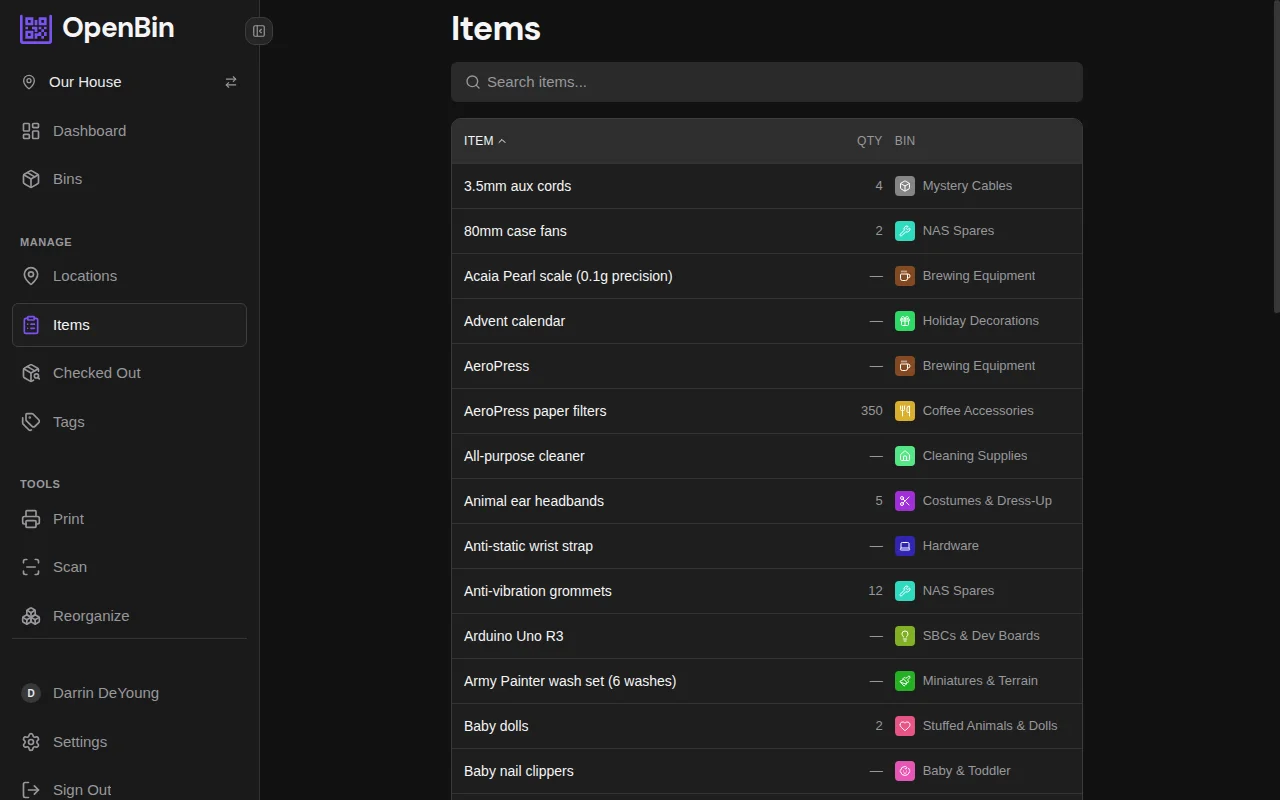
Item list mode is the only one that generates something other than stickers. It prints a paper inventory of bin contents, formatted for reading.
Packing and moving. Print the item list for each bin before you move. When everything gets shuffled into a truck, you've got a paper trail of what's in each container.
Insurance records. Fewer than half of homeowners keep a home inventory for insurance. A printed list of each bin's contents is a decent supplement to the digital version. Keep a copy somewhere other than your house.
Audits and donations. Cleaning out the basement or prepping a garage sale. Print the item list, walk through the bins, cross off what you're getting rid of with a pen. Update the app after, not during.
Quarterly check-ins. If you keep seasonal or rarely-accessed storage, a printed list once a quarter gives you something to compare against when the inventory drifts.
The configuration panel lets you choose what to include: areas, tags, quantities, and how items group (by area, by bin, or flat). Hit Print or Download PDF when you're happy with the preview.
Paper feels old-fashioned for tracking inventory, but it has one thing the app doesn't: you can annotate it with a pen, stick it to a wall, and let someone else reference it without logging into anything.
Custom sizes, QR styles, and presets
Not every printer runs Avery sheets. Thermal rolls, continuous label stock, and non-US paper sizes all need a different setup. The label screen's Format card handles this in three layers.
Standard sizes. Pre-built formats for common Avery sheets and a handful of other label makers. Pick one from the dropdown and the page layout matches.
Custom label size. Enter width and height in millimeters, plus padding and labels per row. For roll-based thermal printers or non-US paper, this is how you match the physical media.
Font scale. Adjust text size relative to the label size. A 25mm × 25mm thermal label needs smaller text than an Avery 5163 shipping label (50mm × 100mm) to avoid overflow. The scale slider handles this without editing a template by hand.
The QR Style card separately controls the visual appearance of QR codes. Dot style ranges from plain squares through rounded, dots, classy, classy-rounded, and extra-rounded. Corner style can be square, extra-rounded, or dot. Foreground and background colors are both fully customizable, including transparent backgrounds for printing on pre-colored label stock.
One caveat. 59% of consumers scan QR codes daily now, and the scanning hardware is more forgiving than it used to be. But reliability still depends on contrast. A very stylized QR with low-contrast colors can fail in dim light or at an angle. OpenBin shows a warning on the QR Style card for this reason. If you're going fancy, test-scan one label before you print the whole sheet.
Finally, presets. Once you've dialed in a format you like (label size, style, QR color, font scale), save it with a name. The preset appears in the format selector for instant reuse. Presets live in your browser's local storage, so they stay with that machine and that user.
Most self-hosters I've talked to save two or three: one for home labels, one for a thermal printer if they have one, and one for a specific project like a move or a garage reorganization. Switching takes one click.
How do you get the print right?
The most common complaint I've seen about home label printing isn't the software. It's the margin the browser adds by default. A quick checklist that covers most issues:
Set print margins to "None" in the browser dialog. Even a half-inch default margin is enough to shift every label on a sheet out of position.
Match paper size. If you picked a Letter-sized Avery template in OpenBin, set the browser's paper size to Letter too. If you're on A4 stock, pick a format built for A4. The two settings have to agree.
Print one sheet first, especially for custom sizes. Hold the output against a blank label sheet and check alignment before running 20 sheets.
Test-scan a label before you peel anything off, especially if you customized the QR style. Use the camera app you'd normally use, in the light you'd normally use it in.
Adjust the font scale if text is wrapping weirdly. Lower it for item lists that overflow, raise it when labels look empty.
For thermal printers, skip the margin step. Thermal rolls don't have margins. Match the width to the roll's width and you're done.
Frequently asked questions
Do I need a special printer?
No. Any home inkjet or laser printer handles label sheets. An inkjet is better for the colored-card style because it's in color. A B&W laser is cheaper per page for plain QR or text-only styles. Thermal printers work too. Use the plain-qr style and a custom size matched to your roll width.
What label paper works best?
OpenBin's standard sizes match common Avery and Avery-compatible sheets. Off-brand equivalents cost less and work identically if the dimensions match. For thermal rolls or any non-standard size, use the custom size inputs.
Will a highly stylized QR code still scan?
Usually, yes. Rounded dots and classy corner styles scan fine in most conditions. But very low-contrast color combinations (light gray on white, red on orange) reduce reliability. Test one label before printing a whole batch. If you see a warning on the QR Style card, take it seriously.
Can I print a single bin's label?
Yes. Uncheck everything in the left panel, then check only the bin you want. Or select a whole area at once, which is handy when you're setting up a new shelf and only need labels for its bins.
Does name card mode work on self-hosted?
All three modes (Labels, Names, and Item List) work identically on self-hosted and cloud. None of them are gated to cloud-only. Self-hosters get the same interface, same presets (in browser storage), same customization options.
Can I print labels that don't include a QR code?
Yes, three ways: icon-only label style, text-only label style, or switch to Names mode entirely. The first two keep the sheet format of Labels mode. Names switches to a grid of cards.
Stop picking between QR and names
OpenBin's print screen isn't the flashiest part of the app, but it's the thing that ties the digital inventory to the physical bin. Pick the mode that matches the bin's situation: QR where scanning makes sense, names where it doesn't, item lists when paper is the right medium.
The same bins work across all three. Set them up once, print whatever format each storage area needs.
If you haven't set up bins yet, start with how to keep track of what's in every storage bin. That walkthrough covers the 30-minute setup. Then come back here and print some labels.