Print Labels
Print Modes
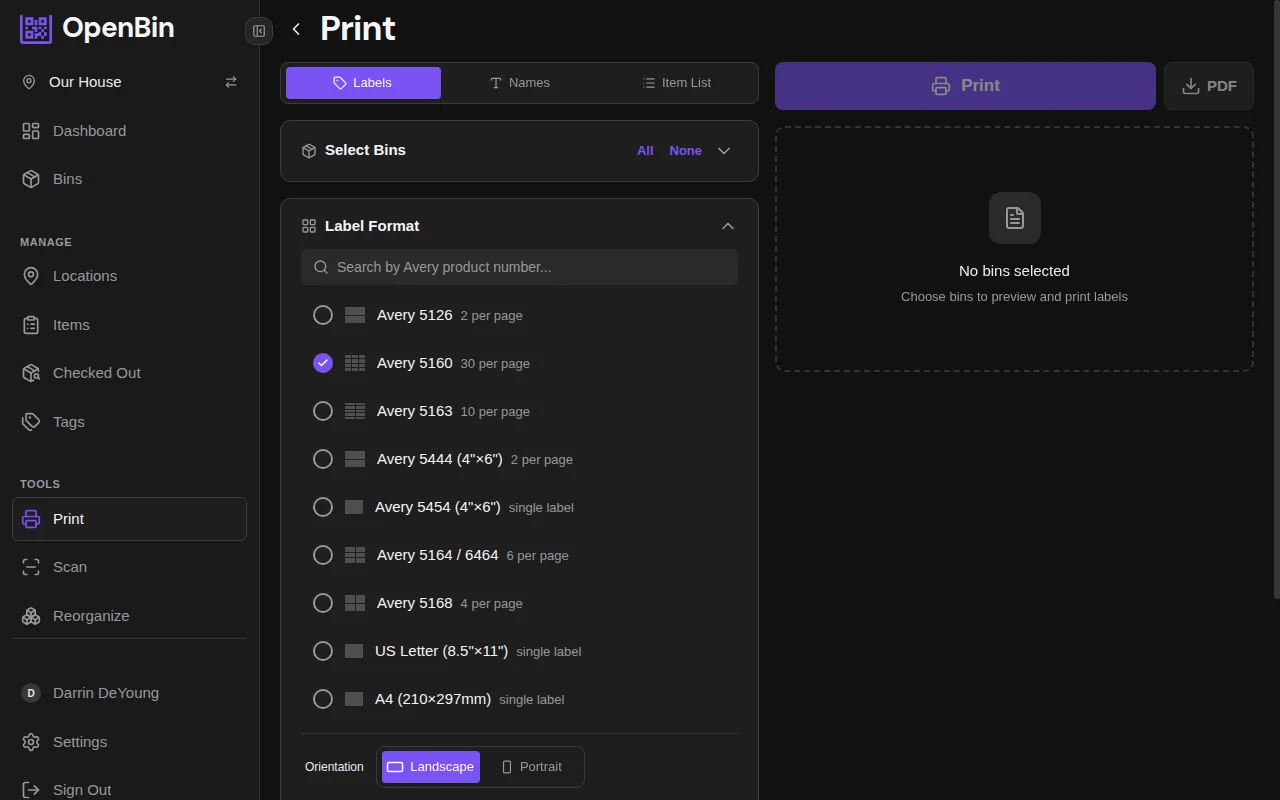
OpenBin supports three print modes: Labels, Names, and Item List. The mode is selected with the Print Mode toggle at the top of the left panel.
Selecting Bins
The left panel shows bins grouped by area with checkboxes. Select individual bins, all bins, or all bins within an area. The preview updates live.
Labels
QR-coded sheets sized to pre-defined popular label formats.
Label Options
| Toggle | Effect |
|---|---|
| QR Code | Show or hide the QR. |
| Bin Name | Show or hide the bin name on the label. |
| Bin Icon | Show or hide the bin's icon. |
| Bin Code | Show or hide the 6-character short code as text. |
| Color Background | Fill the label with the bin's color (instead of white). |
| Label Direction | auto, horizontal, or vertical — controls QR/text layout. auto picks the better fit for the chosen format. |
| Copies per label | Print 1–10 duplicates of each selected bin in one run. |
Item List
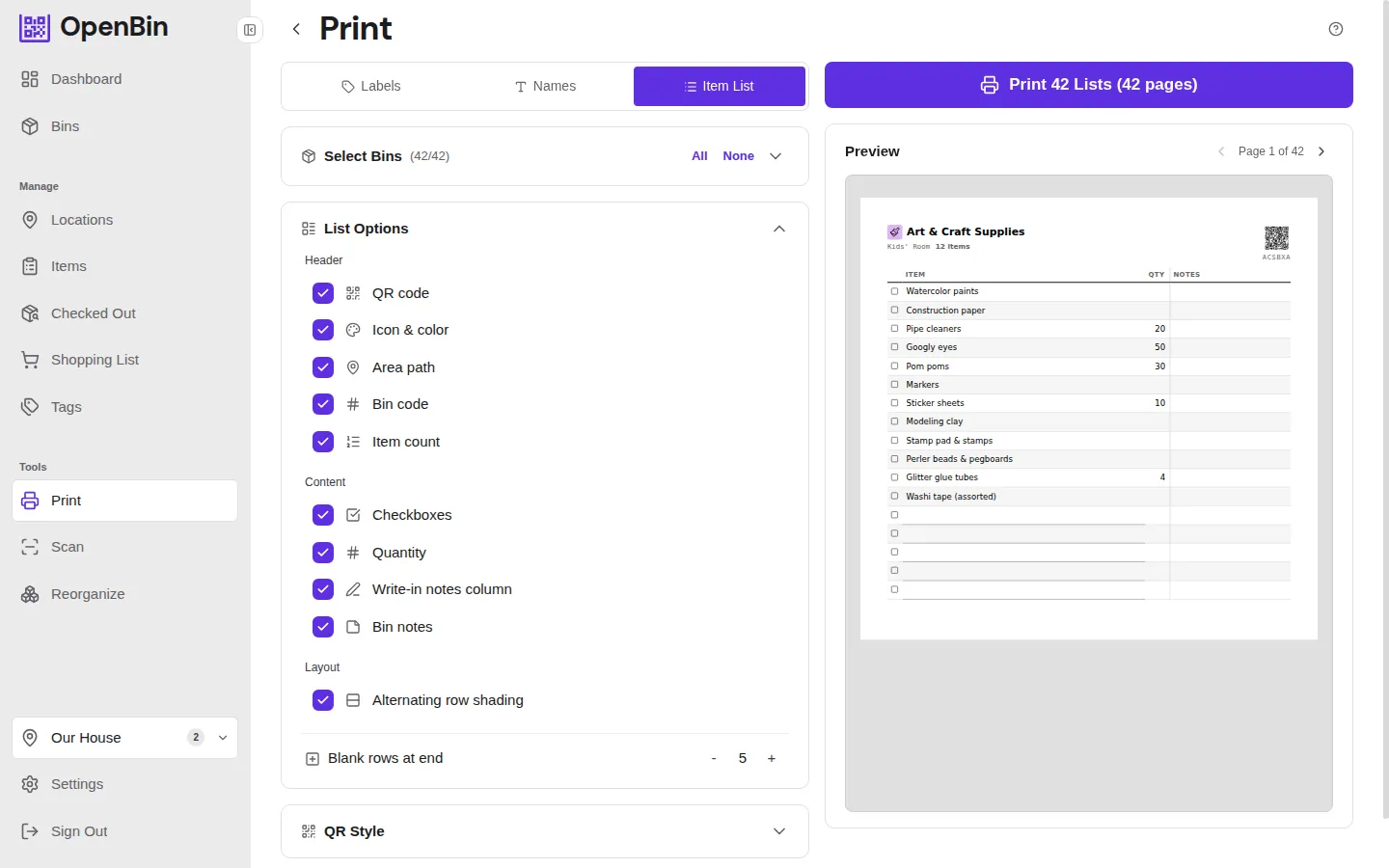
Text-based inventory checklists with quantities, optional QR header, and write-in notes columns. Built for audits, packing lists, and offline inventory checks.
Names
Name cards with optional icons and color-coding. Useful for shelf labels, drawer fronts, or anywhere you want a visible tag rather than a scannable code.
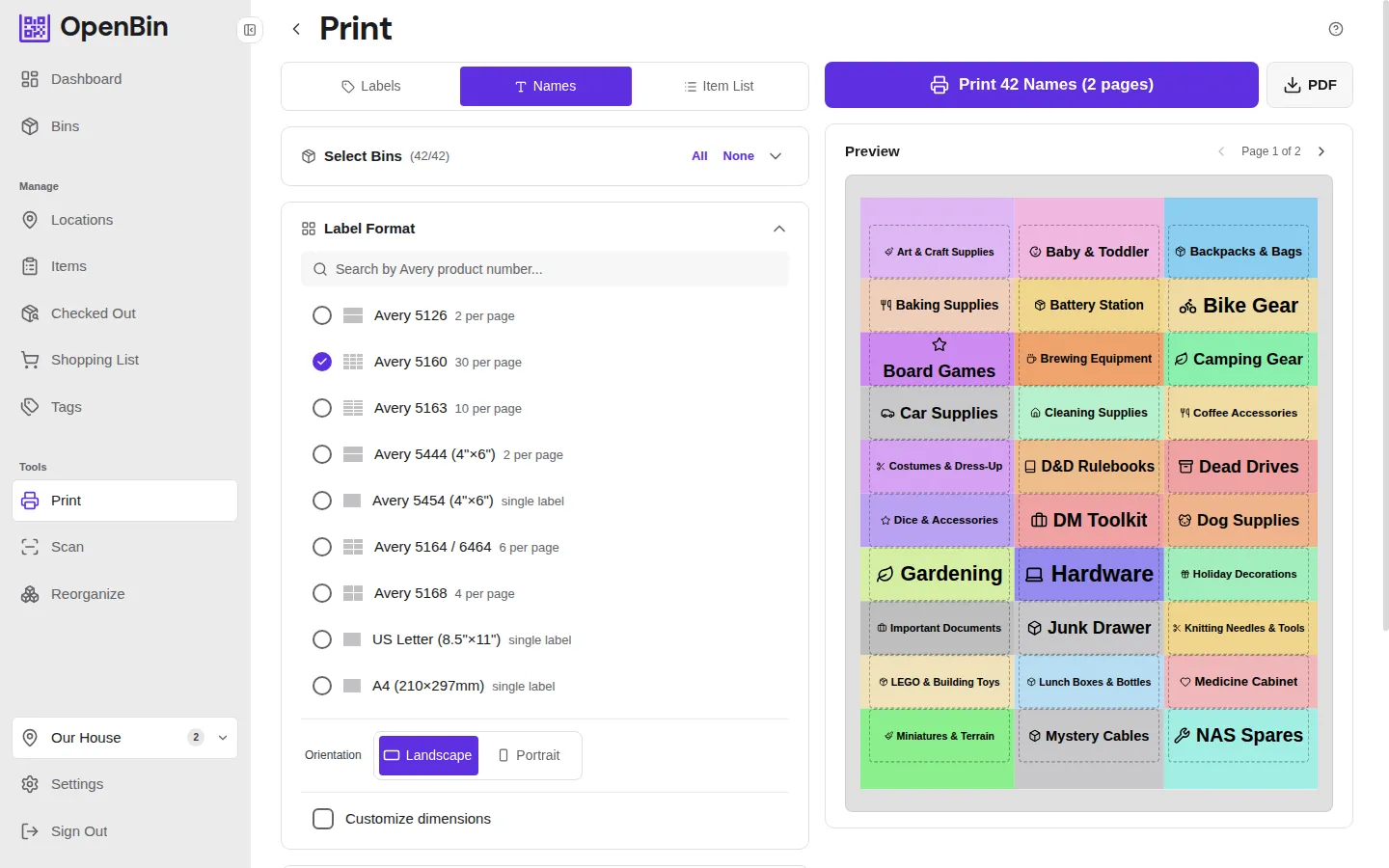
The Name Options card controls what each card displays:
| Option | Description |
|---|---|
| Bin Icon | Show or hide the bin's icon next to its name. |
| Color Background | Fill each card with the bin's assigned color. When off, cards use a neutral background. |
| Font Sizing | Auto-fit scales each bin's text independently to fill its card. Uniform uses the same font size across all cards. |
| Font Size | Visible when sizing is set to Uniform. Choose from S, Default, L, or XL. |
Name cards share the same label format and page layout settings as the Labels mode, so you can use any of the built-in or custom label sizes.
Orientation
Switch between Portrait and Landscape for any page format.
Custom Label Size
For fine-grained control, switch to custom label sizing and specify:
- Label width and height
- Padding inside each label
- Labels per row
The display unit (inches or mm) is configurable in the Format card.
Font Scale
Adjust the text size relative to the label size. Smaller labels may need a lower font scale to avoid overflow; larger labels benefit from a higher scale.
QR Style Customization
The QR Style card lets you change the visual appearance of QR codes:
| Option | Choices |
|---|---|
| Dot style | square, rounded, dots, classy, classy-rounded, extra-rounded |
| Corner style | square, extra-rounded, dot |
| QR foreground color | Any color (hex or picker) |
| QR background color | Any color (hex or picker), or transparent |
WARNING
Highly stylized QR codes or very low-contrast colors may reduce scan reliability. Test scan your labels before printing a large batch.
Saving Presets
Once you have a format you're happy with, save it as a named preset:
- In the Format card, enter a preset name.
- Click Save Preset.
Saved presets appear in the format selector for quick reuse across sessions. Print settings (saved presets, the active format, label options, QR style, and selected print mode) are persisted server-side per user and sync across devices and browsers.
TIP
For best results with browser print, set margins to "None" in the print dialog and match the paper size to your selected format.