
AI Features
AI is optional. Connect your own API key or have an admin set a server-wide key. Everything else works without it.
Supported Providers
| Provider | Recommended Model |
|---|---|
| OpenAI | gpt-5-mini |
| Anthropic | claude-sonnet-4-6 |
| Google Gemini | gemini-3-flash-preview |
| OpenAI-compatible | — |
Getting an API key
Create an API key from your provider's developer platform:
- OpenAI — platform.openai.com → API Keys. Pricing →
- Anthropic — console.anthropic.com → API Keys. Pricing →
- Google Gemini — aistudio.google.com → Get API key. Free tier available. Pricing →
Per-User Setup
Configure your provider, API key, and model in Settings → AI. AI features activate immediately after saving.
Server-Wide Setup (Admin)
Admins can configure a shared AI key via environment variables so all users get AI features without individual setup:
AI_PROVIDER=openai
AI_API_KEY=sk-...
AI_MODEL=gpt-5-mini
# For OpenAI-compatible endpoints:
AI_ENDPOINT_URL=https://your-endpoint.example.com/v1
Users can still configure their own keys in Settings → AI, which takes precedence over the server-wide key.
INFO
Set AI_ENCRYPTION_KEY to an AES-256-GCM key to encrypt stored API keys at rest. Without this, keys are stored as plaintext in the database.
Photo Analysis
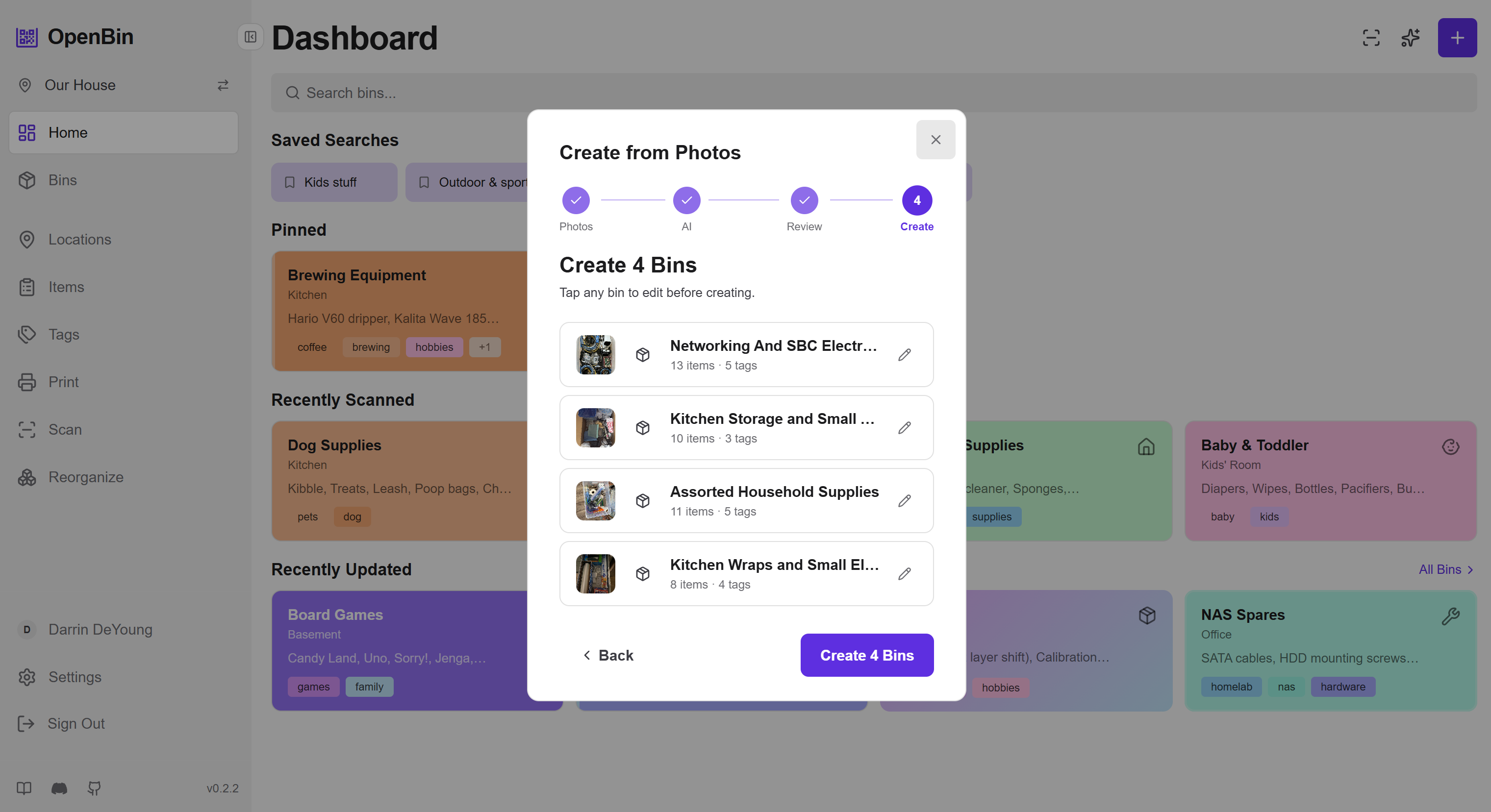
After uploading a photo to a bin, tap Analyze with AI to get suggestions for bin name, items (with quantities), tags, and notes. Each field can be accepted or dismissed independently.
If the first pass missed items or suggested incorrect names, you can re-analyze to get improved results. Tap the sparkle icon on the photo preview and click Reanalyze (or type a specific correction). The reanalysis sends both the photos and the previous suggestions back to the AI, so it can refine its output based on what it already identified. Changed fields are highlighted so you can see exactly what was updated.
Natural Language Commands
The AI command bar (accessible from the bin list) accepts natural language instructions:
Add screwdriver to the tools bin
Move batteries to the garage area
Create a bin called Holiday Decorations with items: lights, ornaments, wrapping paper
Remove the extension cord from the electrical bin
OpenBin shows a preview of the action and asks for confirmation before making changes.
Inventory Search
Ask natural language questions to search across all bins:
Where did I put the holiday lights?
Which bins have batteries?
What's in the attic?
Do I have any sandpaper?
Returns matching bins with an explanation of why each matched.
AI Reorganization
The Reorganize page lets AI suggest how to restructure an entire location's bins, areas, and tags — then apply those changes in bulk.
- Navigate to Reorganize from the sidebar.
- Select the bins to include (defaults to all).
- Click Suggest Reorganization — AI streams back proposed changes: renaming bins, moving them between areas, updating tags, and creating new areas.
- Review the preview showing all proposed changes side-by-side with current state.
- Click Apply to execute the changes or dismiss individual suggestions.
A custom reorganization prompt can be set in Settings → AI → Advanced to guide the AI's restructuring logic (e.g. "group by room" or "consolidate similar items").
Task Routing
Different AI tasks have different requirements. Photo analysis needs a multimodal model, while text extraction and simple commands work fine with a smaller, cheaper one. Task Routing lets you set the provider, model, and endpoint URL per task group.
OpenBin groups AI tasks into three categories:
| Task Group | Tasks Included | Typical Model Choice |
|---|---|---|
| Vision | Photo analysis | A multimodal model (e.g. gpt-5-mini, gemini-3-flash-preview) |
| Quick Text | Commands, execute, text extraction/structuring | A fast, cheap model (e.g. gpt-4.1-mini, claude-haiku-4-5) |
| Deep Text | Inventory queries, reorganization | A capable reasoning model |
Each group can override any combination of provider, model, and endpoint URL. Unset fields inherit from your default AI configuration.
Example configurations
OpenAI
| Group | Model |
|---|---|
| Vision | gpt-5-mini |
| Quick Text | gpt-4.1-mini |
| Deep Text | gpt-5-mini |
Anthropic
| Group | Model |
|---|---|
| Vision | claude-sonnet-4-6 |
| Quick Text | claude-haiku-4-5 |
| Deep Text | claude-sonnet-4-6 |
Google Gemini
| Group | Model |
|---|---|
| Vision | gemini-3-flash-preview |
| Quick Text | gemini-2.5-flash |
| Deep Text | gemini-3-flash-preview |
Mixed-provider example
You can route different task groups to entirely different providers. For example, use Gemini for photo analysis and Anthropic for everything else:
| Group | Provider | Model |
|---|---|---|
| Vision | Google Gemini | gemini-3-flash-preview |
| Quick Text | Anthropic | claude-haiku-4-5 |
| Deep Text | Anthropic | claude-sonnet-4-6 |
How to configure
- Go to Settings → AI → Task Routing.
- Select a task group (Vision, Quick Text, or Deep Text).
- Optionally override the provider, model, and endpoint URL for that group.
- Save.
Leave all fields blank for a group to use your default AI configuration.
TIP
One model for all tasks is a fine starting point. You can always add per-group overrides later — e.g. a cheaper model for Quick Text.
Server-wide task routing
Admins can lock task routing for specific groups via environment variables. When a group is configured by the server, it appears as read-only in the UI and cannot be changed by individual users. See the Configuration Reference for the full list of per-group variables.
Custom Prompts
Advanced users can override the default AI prompts for each operation:
- Go to Settings → AI → Custom Prompts.
- Select a task tab and enter a custom prompt for photo analysis, commands, search queries, text structuring, or reorganization.
- Save.
Custom prompts are useful for domain-specific terminology, non-English languages, or specialized inventory contexts.
TIP
Leave a custom prompt field blank to use the built-in default for that operation.
Temperature and Token Settings
The advanced AI settings section exposes fine-tuning parameters:
| Parameter | Effect |
|---|---|
| Temperature | Controls randomness. Lower = more deterministic. Range: 0.0–2.0 |
| Max tokens | Caps the response length. |
| Top-p | Nucleus sampling probability. Lower = more focused output. |
| Request timeout | Seconds to wait before aborting an AI request. |
These settings apply per provider configuration.