
Keyboard Shortcuts
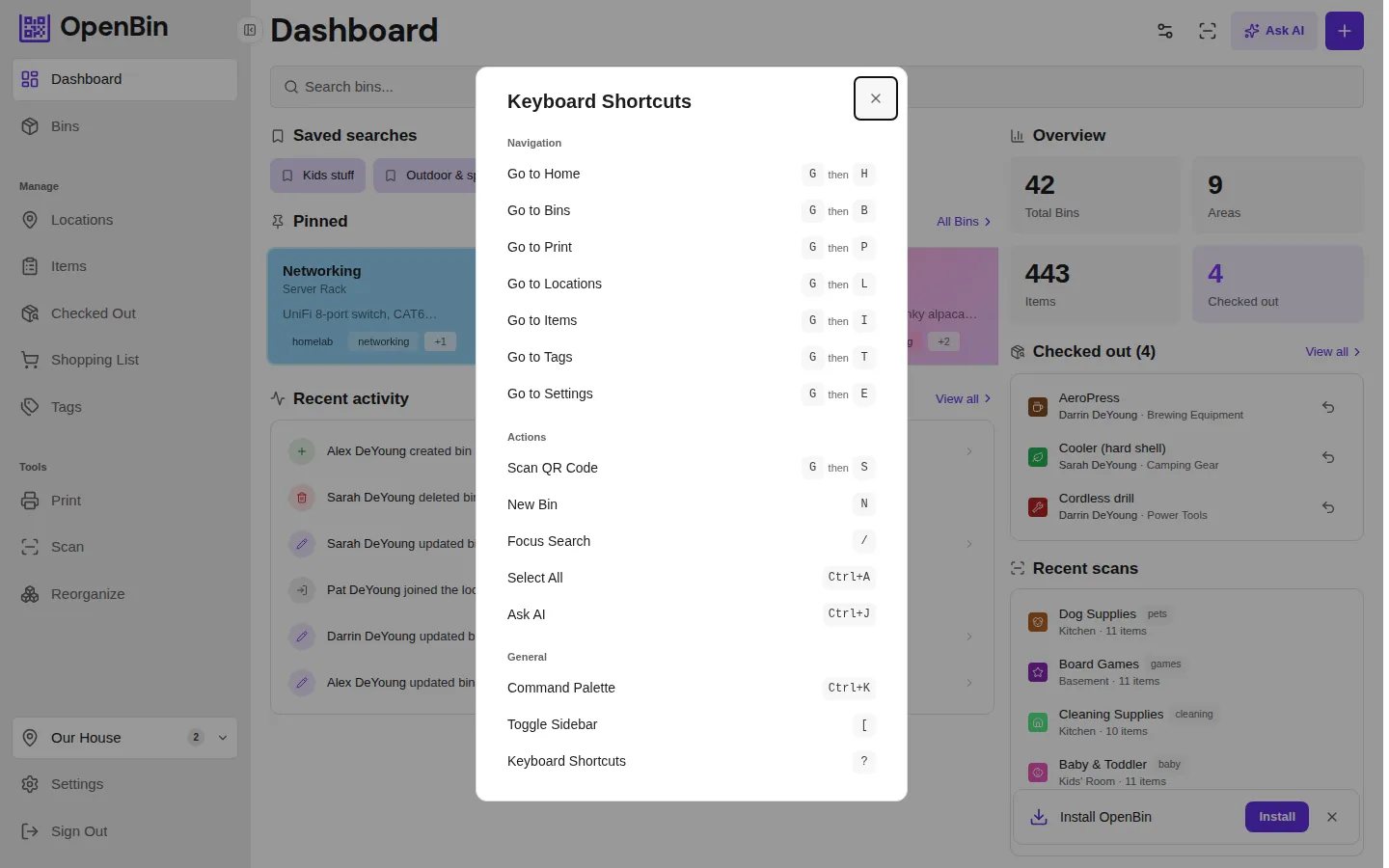
OpenBin supports keyboard shortcuts for fast navigation and common actions. Shortcuts are available on desktop and are disabled while typing in input fields or text areas to avoid conflicts.
Command Palette
Press Cmd+K (Mac) or Ctrl+K (Windows/Linux) to open the command palette. Type to search and jump to any bin, area, or page. Results filter as you type — press Enter to navigate to the selected result.
The command palette is the fastest way to get anywhere in the app without touching the mouse.
Navigation Shortcuts
Navigation shortcuts use a two-key sequence: press G followed by a second key to go to a page.
| Shortcut | Destination |
|---|---|
G then H | Dashboard (Home) |
G then B | Bins list |
G then P | Print Labels |
G then L | Locations |
G then I | Items |
G then T | Tags |
G then E | Settings |
Press the keys in sequence — press and release G, then press the second key.
Action Shortcuts
| Shortcut | Action |
|---|---|
N | Create new bin |
G then S | Open the QR scanner |
/ | Focus the search input |
Mod+A | Select all (in selectable lists) |
Mod+J | Open Ask AI |
? | Show keyboard shortcuts help |
[ | Toggle sidebar (desktop only) |
Mod+K | Open command palette |
Mod = Cmd on macOS, Ctrl on Windows/Linux.
Disable shortcuts
Keyboard shortcuts can be turned off in Settings → Preferences → Keyboard Shortcuts if they conflict with assistive tools or muscle memory.