
QR Scanning
Each bin's QR label encodes its 6-character short code. The format depends on the server's QR_PAYLOAD_MODE setting:
appmode (default): Encodesopenbin://bin/CODE. Domain-independent — works even if you change your server URL. Generic phone cameras will display the URI as text rather than a clickable link.urlmode: Encodes{BASE_URL}/bin/CODE. Works with any phone camera as a standard web link. Requires a stable domain configured via theBASE_URLenvironment variable.
The in-app scanner recognizes both formats, so labels printed in one mode continue to work after switching.
Camera Scanner
Tap the QR icon in the navigation bar to open the scanner. Point your camera at a label and OpenBin navigates to the bin automatically.
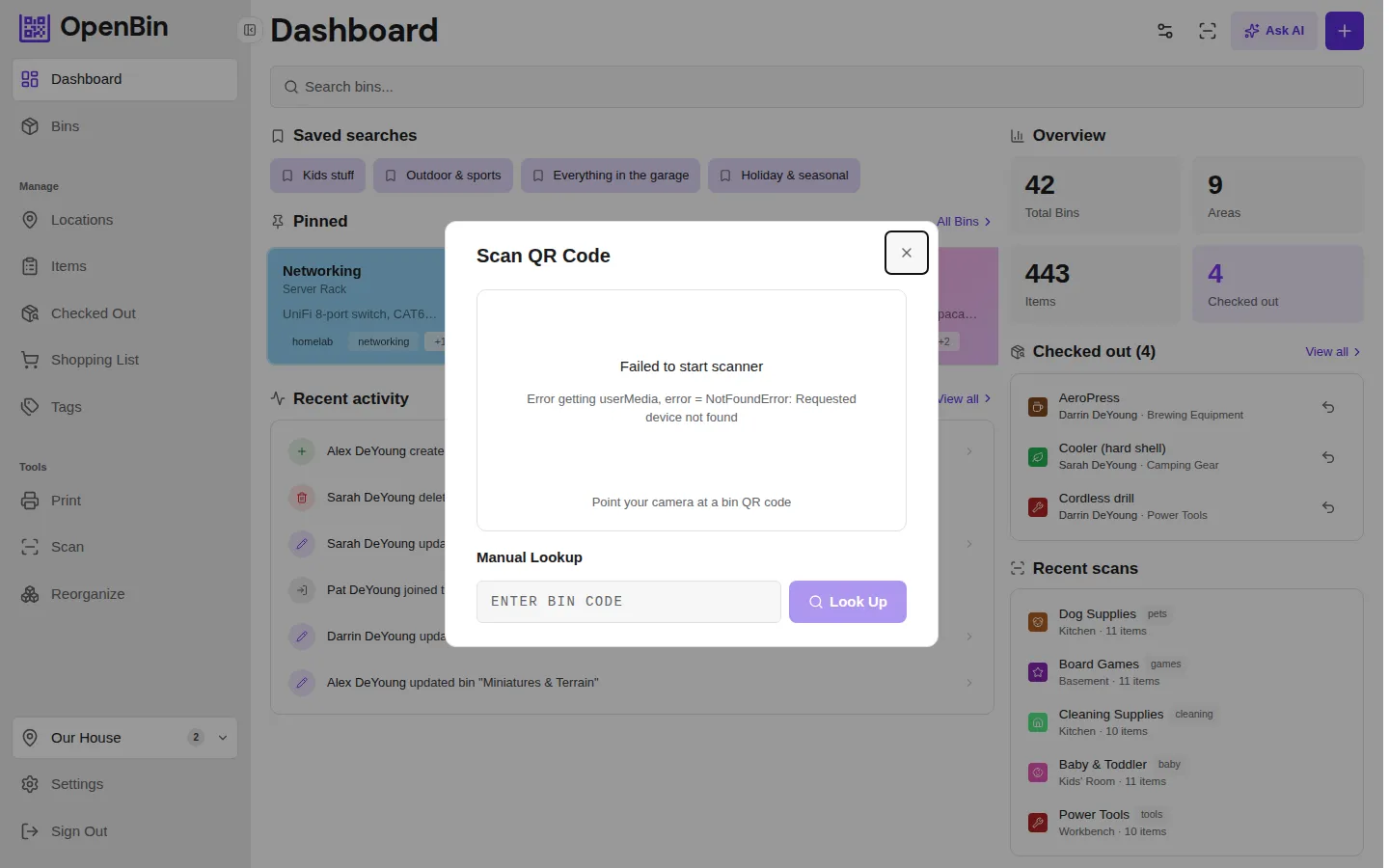
Manual Lookup
Type or paste a bin's 6-character short code on the scanner page to look it up without a camera. The short code is printed below the QR code on every label.
What Happens on Scan
Scanning navigates to the bin detail page and records the scan in your history. If the bin belongs to a location you haven't joined, you'll be prompted to join. If the bin has been deleted, you'll see an option to check the trash.
Scan History
Your recent scans are tracked per user and displayed on the Dashboard under Recently Scanned. This makes it easy to return to bins you've recently looked at without scanning again.
To clear your scan history, go to Settings → Clear Scan History.
PWA / Home Screen
OpenBin can be installed as a Progressive Web App (PWA) on Android and iOS:
- Android: Open OpenBin in Chrome → browser menu → Add to Home Screen.
- iOS: Open OpenBin in Safari → Share → Add to Home Screen.
Once installed, OpenBin behaves like a native app. The QR scanner uses the device camera and works without a browser chrome.