
Items & Tags
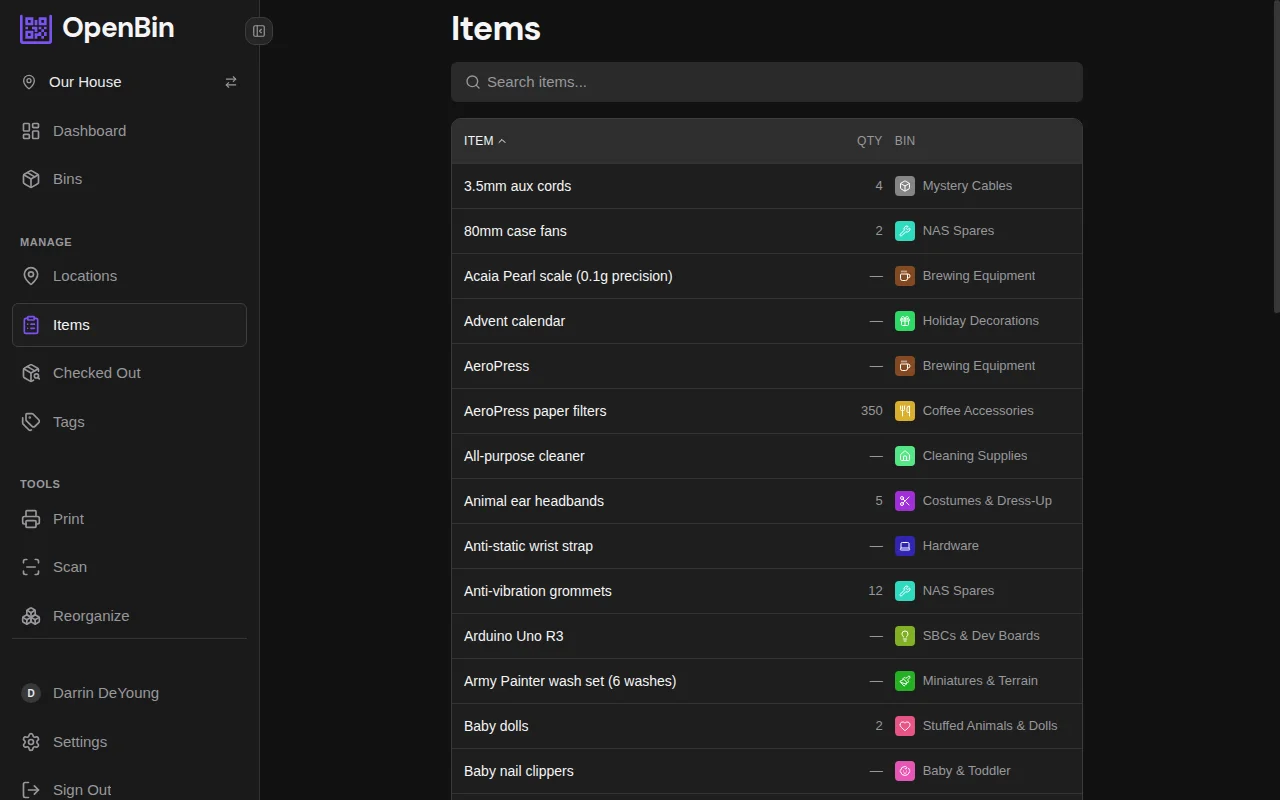
Items page
Lists every item across all bins in the active location.
- Search by item name to find which bin holds a specific thing.
- Sort by item name (alphabetical) or by bin name to group items by their container.
- Quantity is shown next to each item when tracked — items without a quantity display no count.
- Paginated results keep the page fast even for locations with thousands of items.
Clicking an item navigates directly to its parent bin's detail page.
TIP
The Items page is the fastest way to answer "which bin has the Phillips screwdriver?" — just search for it and tap the result.
Tags page
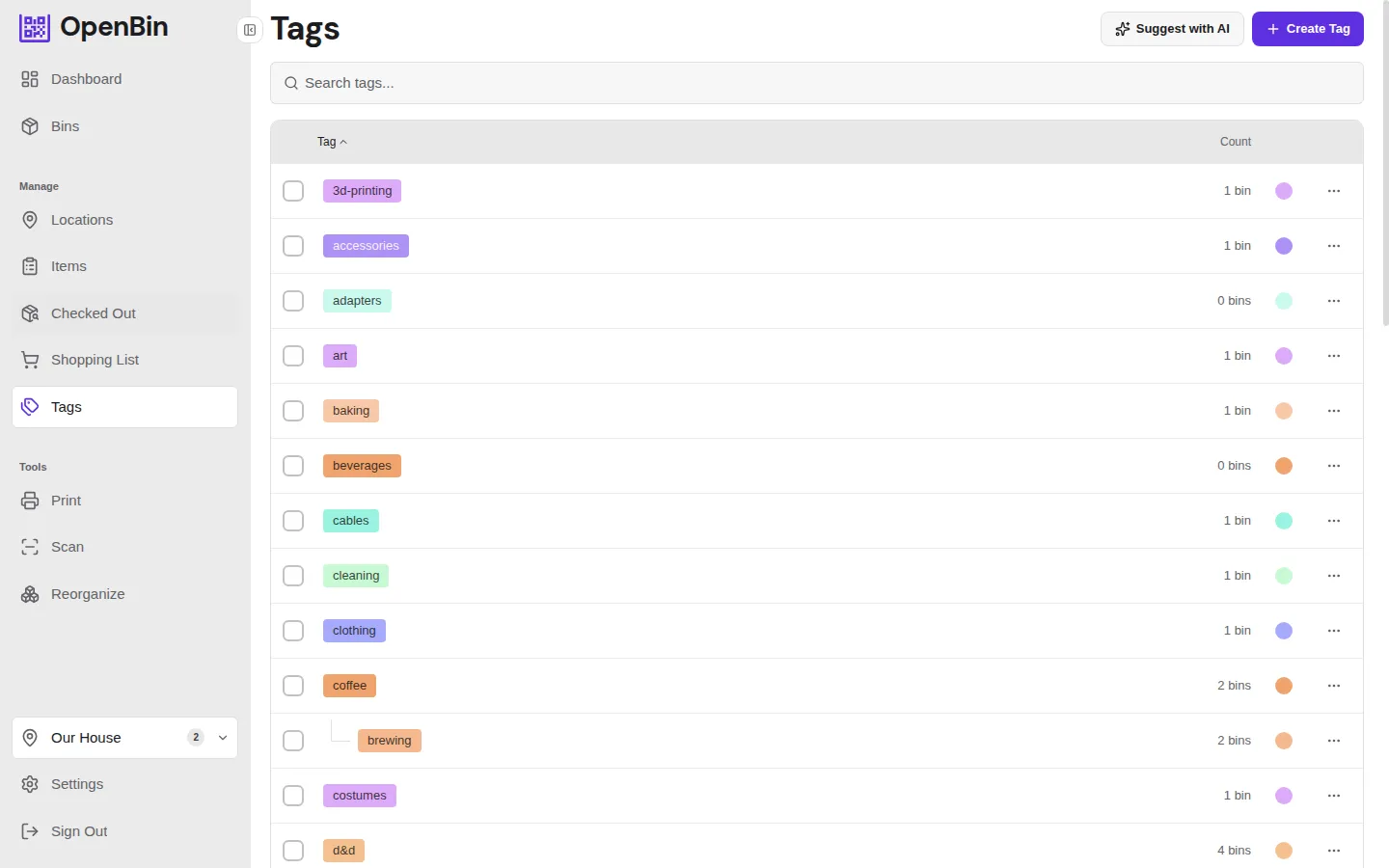
Lists every tag used in the active location.
- Search by tag name to find a specific tag.
- Sort by tag name (alphabetical) or by usage count to see which tags are most common.
- Each tag shows how many bins use it.
Clicking a tag opens the bin list filtered to only bins with that tag applied.
Tag Colors
Tags can be assigned a custom color that appears consistently throughout the app — on bin cards, in the filter panel, and on tag badges.
Tag colors are set per location, so different locations can use different color schemes for the same tag name.
Setting a Tag Color
Tap the color indicator next to any tag on the Tags page to assign a color. Colors are visible to all location members. Clear the assignment to revert to the default appearance.
Tag Hierarchy
Tags support a single-level parent/child structure.
How it works
- A tag can have one parent, and a parent can have many children. There are no grandchildren — the hierarchy is exactly one level deep.
- Parent tags group their children in the tag tree view and in the tag input dropdown, making it easier to find related tags.
- A tag that already has children cannot itself become a child of another tag.
Setting a parent
Assign a parent from the Tags page using the Set Parent dialog on an existing tag, or choose a parent when creating a new tag via the Create Tag dialog.
Editing and deleting
- Renaming a parent tag automatically updates the parent reference on all of its children.
- Deleting a parent tag orphans its children — they become top-level tags again. No child data is lost.
Filtering
Filtering by a parent tag includes bins tagged with any of that parent's children. This lets you use broad categories (e.g. "Tools") alongside specific tags (e.g. "Hand Tools", "Power Tools") and filter at either level.