
Bins
Each bin represents a physical container — a bin, tote, box, drawer, or shelf — with items, tags, notes, custom fields, and visual settings.
View modes
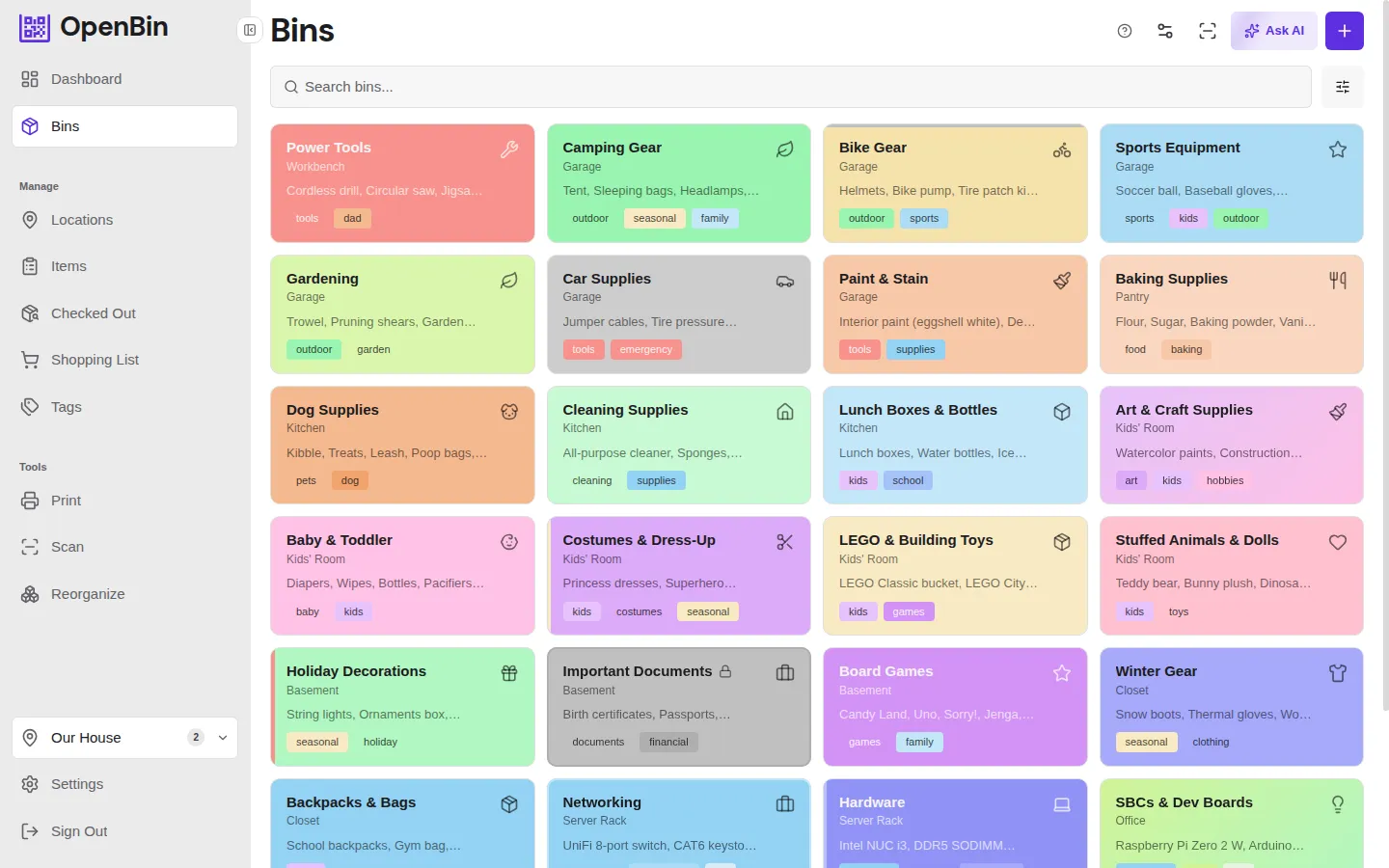
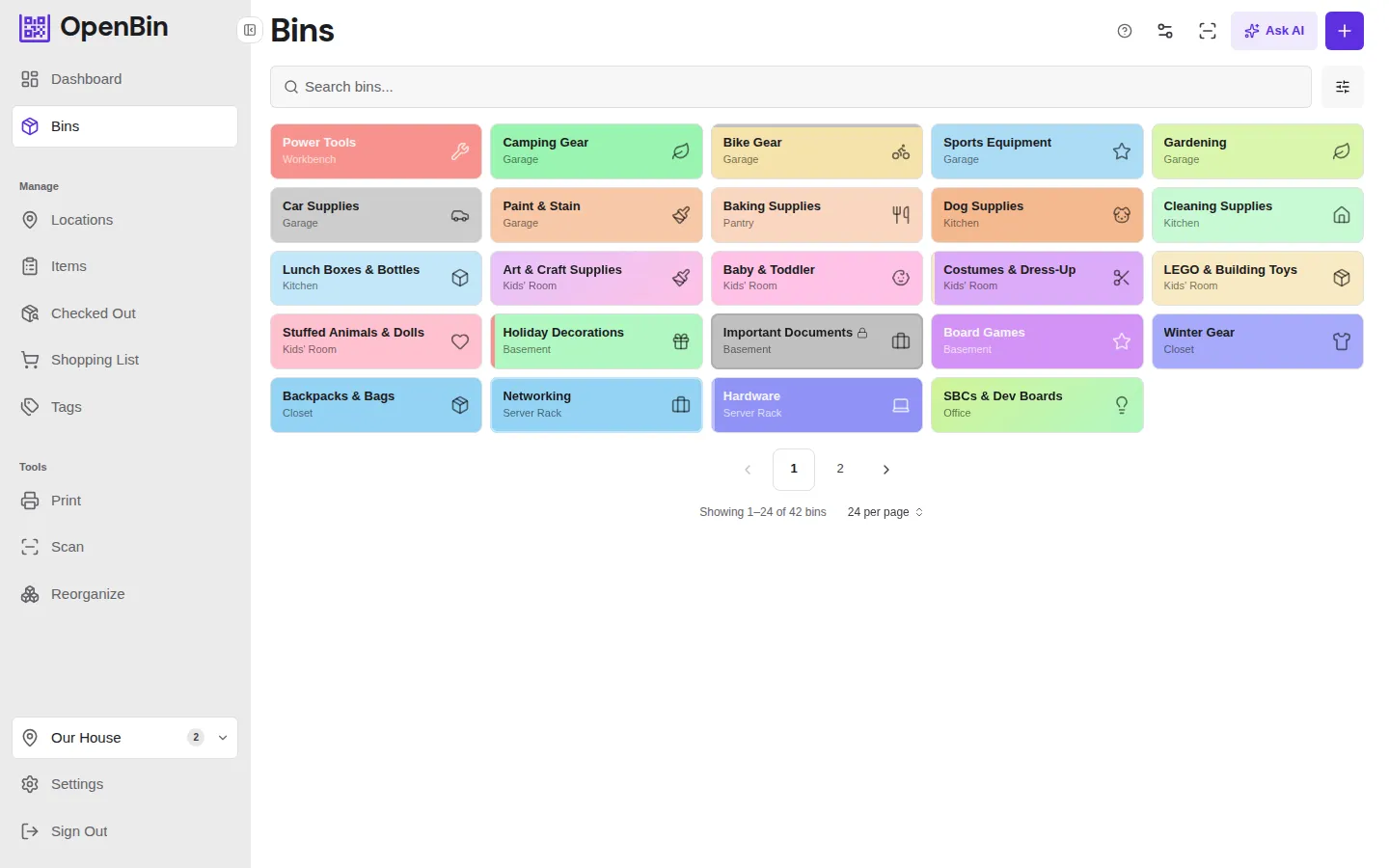
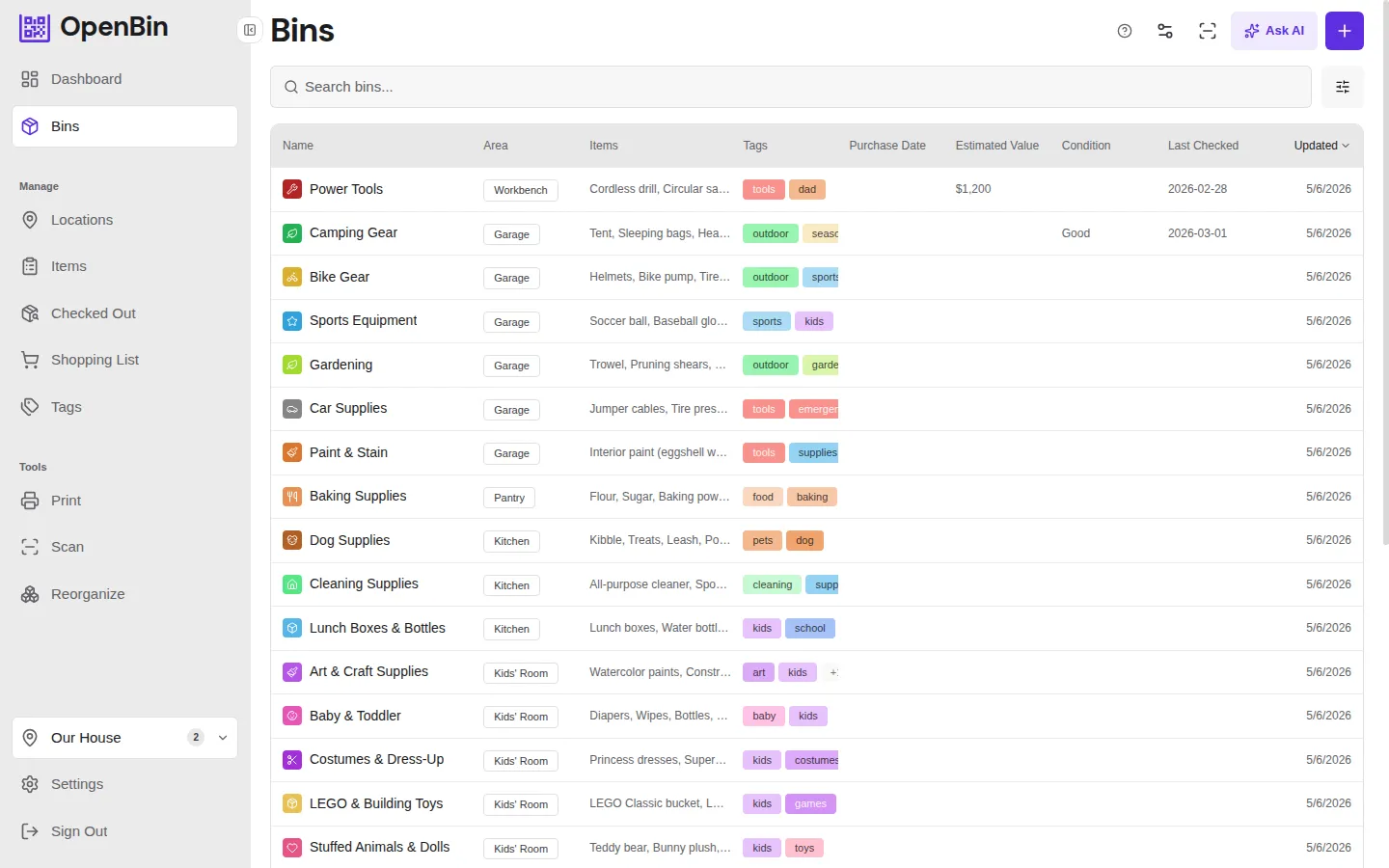
The bin list has three view modes, toggled from the toolbar:
Creating a bin
Tap + New Bin and enter a name. Everything else is optional. The short code is auto-generated from the bin name.
Editing a bin
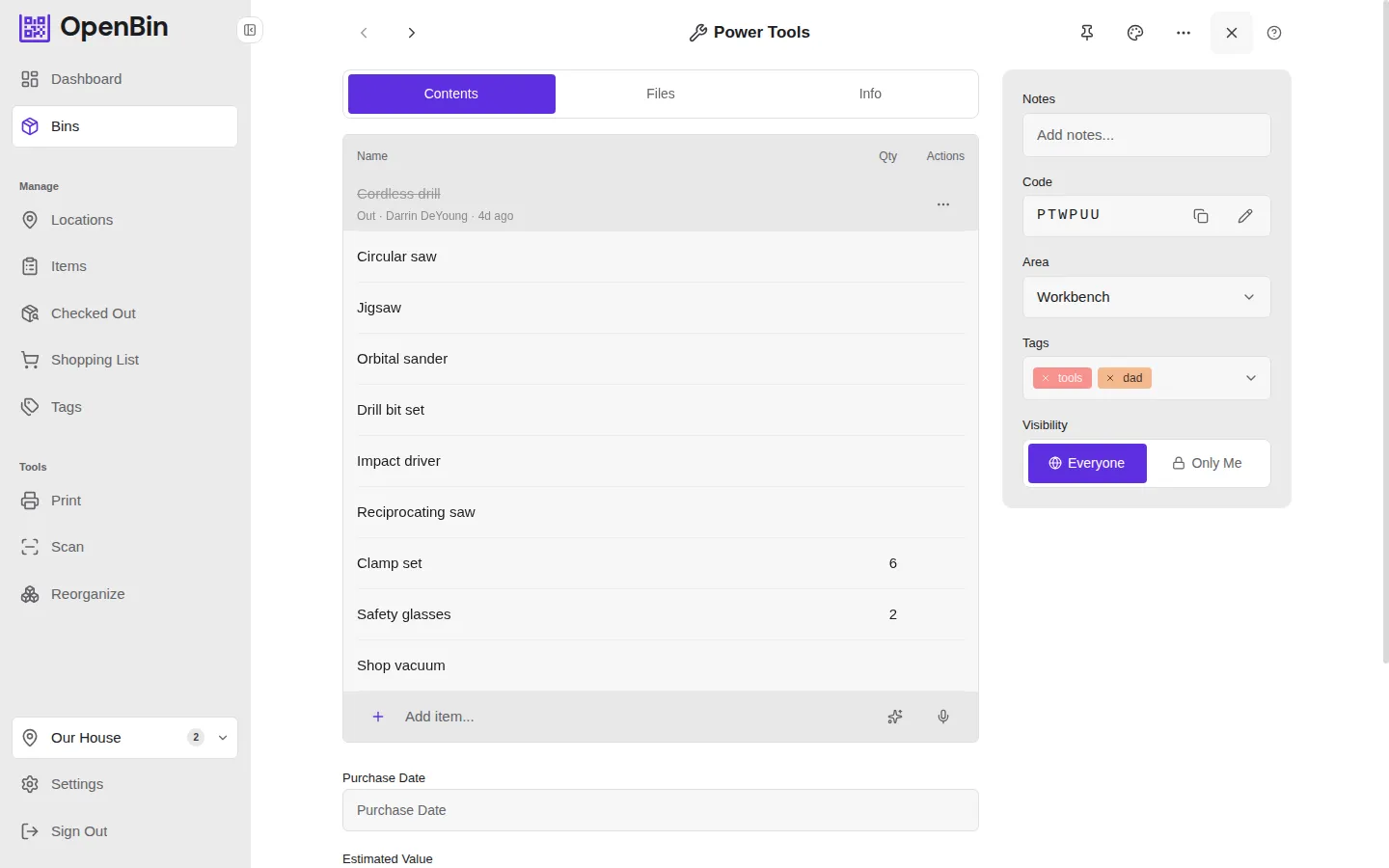
Bin fields auto-save as you type. Each field saves independently after a short pause, and a brief indicator appears next to it to confirm.
Items
Items are a discrete, ordered list of things inside the bin. Each item has a name and an optional quantity for tracking counts. Items can be added, removed, renamed, and reordered from the bin detail page.
You can include quantities inline when adding items. The following shorthand formats are recognized automatically:
3x screws— leading quantityscrews x5— trailing quantitybolts (10)— quantity in parenthesesnails, 5— quantity after a comma
The parsed quantity is set on the item for you. This works in the quick-add input and when pasting multiple lines.
When a quantity is set, it is displayed next to the item name throughout the app (bin detail, item search results, exports, and AI suggestions).
TIP
Items are searchable. Searching "screwdriver" will find bins that have "screwdriver" in their items list.
Tags
Tags categorize bins and are shared across the location. Tags can be assigned custom colors per location (Settings → Tags) and used as filters.
Color
The color field sets the background tint of the bin card. OpenBin uses a hue-based continuous color picker:
- Select a hue from the gradient bar.
- Choose a shade from the swatches below it.
The chosen color is applied to the bin card background and to the label background when Color Background is enabled in Print → Label Options.
Card Styles
Card style controls the visual treatment of the bin card beyond just color. The style is configured in the appearance section when editing a bin.
| Style | Description |
|---|---|
default | Flat default look. No extra configuration. |
border | Colored border accent around the card. Configurable style (solid, dashed, dotted, double) and width (1–8 px). |
gradient | Two-color diagonal gradient. Pick a primary color and an end color. |
stripe | Colored stripe on one side of the card. Configure position (left, right, top, bottom) and width (1–10 units). |
photo | Uses one of the bin's attached photos as the full card background image. |
Custom Fields
Admins can define location-scoped custom fields that appear on every bin. Custom fields are key–value pairs useful for tracking domain-specific metadata like "Purchase Date", "Serial Number", or "Warranty Expires".
Managing Custom Fields
- Go to Location Settings → Custom Fields.
- Add a field name and confirm.
- Drag to reorder fields — the order is reflected on every bin.
- Rename or delete fields as needed. Deleting a field removes its values from all bins.
Using Custom Fields
When creating or editing a bin, custom fields appear as text inputs below the standard fields. Leave a field blank to skip it — blank fields are hidden in view mode.
Custom field values are included in JSON/ZIP exports and AI suggestions.
Visibility
| Value | Who can see it |
|---|---|
location | All members of the location |
private | Only you (the bin creator) |
Set visibility when creating or editing a bin. Admins can see all bins regardless of visibility.
Short Code
Every bin has a 6-character short code (uppercase letters only — no digits) auto-generated from its name at creation time. The short code:
- Appears printed on QR labels alongside the QR code itself.
- Can be typed manually into the scanner or search bar to look up a bin without a camera.
- Is stable — it does not change if you rename the bin.
- Can be changed by admins via the overflow menu on the bin detail page (Change Code). The new code must not already be in use by another bin in the same location — if it is, the change is rejected with a validation error.
Soft Delete and Trash
Deleting a bin moves it to Trash. Bins can be restored or permanently deleted from Settings → Trash. See Trash and Retention for details.