
Search & Filter
Search bar
The search bar at the top of the bin list searches across:
- Bin names
- Item names (items inside bins)
- Tags
- Notes
- Bin ID (short code)
- Area name
Search is typo-tolerant — minor spelling mistakes and near-matches still return results. Results update as you type. Clearing the search bar returns the full list.
Filter Panel
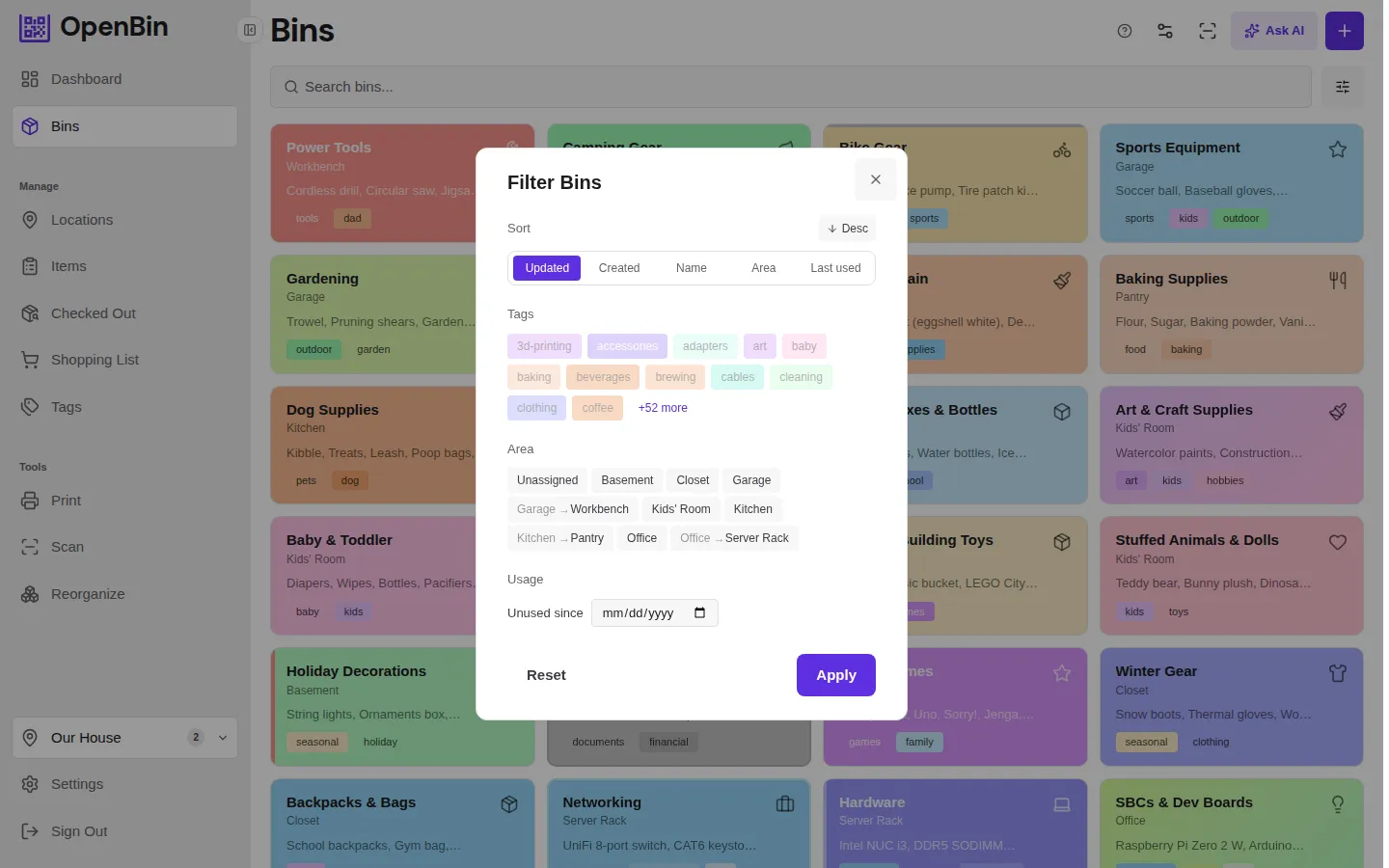
Click the Filter button (or funnel icon) to expand the filter panel. Filters can be combined — all active filters are applied together.
Filter by Tag
Select one or more tags from the tag list. By default, bins matching any of the selected tags are shown. Switch the tag mode to All to show only bins that have every selected tag.
Filter by Area
Select one or more areas to show only bins assigned to them. Choose Unassigned to show bins with no area.
Filter by Usage
The Usage filter lets you find stale bins. Pick a date — bins not scanned, edited, or otherwise touched since that date are returned. Useful for finding storage you haven't accessed in a year and might want to consolidate.
Sort Options
Use the Sort menu to change the order of bins:
| Sort option | Description |
|---|---|
| Name | Alphabetical ascending |
| Created | Most recently created first |
| Updated | Most recently edited first |
| Area | Grouped by area name |
| Last used | Most recently scanned or accessed first |
Column Visibility
In the table view, use the column visibility menu to toggle which columns are displayed:
- Icon
- Area
- Items (count + preview)
- Tags
- Updated date
- Created date
- Notes
- Created by
- Custom fields (each defined custom field is its own toggle)
Column preferences are saved in your browser's local storage and persist across sessions on that browser.
Saved Views
Save frequently-used filter and sort combinations as named views:
- Set your desired filters and sort order.
- Click the Save View button.
- Enter a name for the view and confirm.
Saved views appear in the bin list as quick-access buttons. Clicking a saved view applies those filters and sort with one tap.
TIP
Saved views are personal — they are stored per user, not shared across the location.