
Dashboard
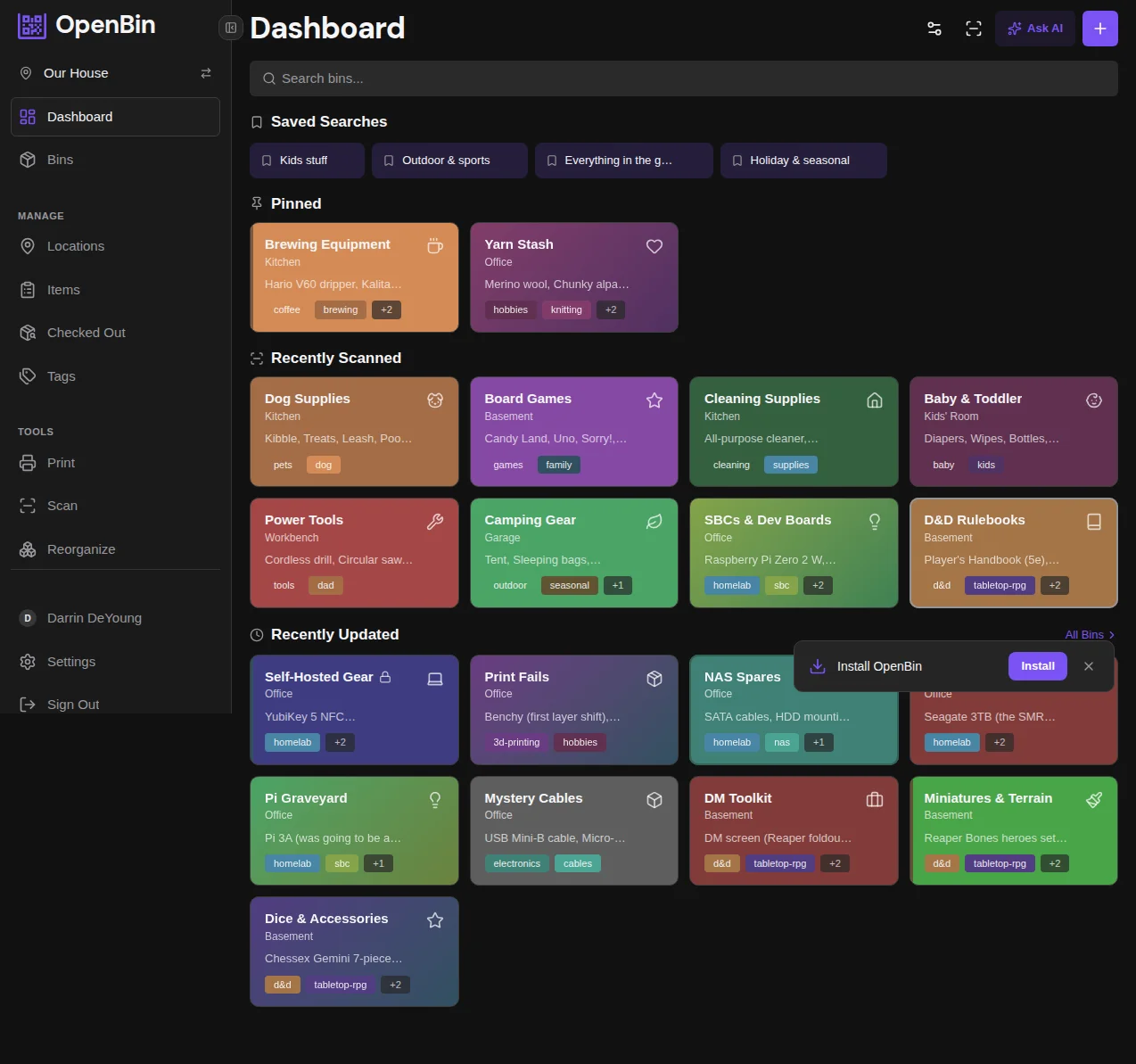
The Dashboard is the home screen after login. It surfaces your location's stats, pinned bins, recent scans, open checkouts, and activity.
Sections
The dashboard has several sections. Each one can be turned on or off per user from the gear menu in the top-right of the page:
| Section | Description | Notes |
|---|---|---|
| Stats | Bin, item, area, and checkout counts for the active location. | — |
| Pinned bins | Bins you've pinned, draggable to reorder. | Personal; not shared with other members. |
| Activity feed | A live stream of recent edits, creations, and member actions. | Admin-only; hidden for members and viewers. |
| Open checkouts | Items currently checked out across the location. | Visible to all roles. |
| Recently scanned | Bins you scanned recently via QR or short-code lookup. | Personal. |
| Tour launcher | A button that opens the in-product tour. | New users only; can be reopened from settings. |
Configure the dashboard
Open the gear menu on the dashboard to toggle sections, change the number of "recently scanned" entries (3–20), and toggle timestamps on activity rows. Preferences are stored server-side per user.
Stats
The Stats card shows summary counts for the active location: total bins (excluding trash), total areas, total items across all bins, and open checkouts (items checked out and not yet returned).
Pinned Bins
Bins you've pinned appear at the top of the dashboard for instant access. Pinning is personal; your pinned bins are not visible to other members.
To pin a bin, open its detail page and tap the Pin button in the toolbar (or the action menu on mobile). To unpin, tap Pin again or use the unpin action from the dashboard.
Pinned bins can be reordered by dragging them on the dashboard.
Bulk actions on pinned bins
You can multi-select pinned bins on the dashboard to act on them in bulk (tag, move, restyle, etc.). Selection is scoped to the pinned section. To act on all bins in the location, use the bin list. See Bulk Operations.
Recently Scanned
Shows bins you scanned recently via the QR scanner or manual short-code lookup. The list reflects your own scan history, not the location's. Length is configurable (3–20) in the dashboard settings.
Open Checkouts
Lists items currently checked out from any bin in the location. Tap a row to jump to the bin. See Checkouts for the full flow.
Needs Organizing
A count of bins missing items, tags, and an area assignment. Useful as a cleanup target for empty bins that were created and never finished.
Activity Feed
Admins see a live feed of recent bin edits, creates, deletes, member actions, and AI runs. This card is hidden for members and viewers. The full audit trail lives at Location Settings → Activity Log; the dashboard card is a condensed preview.
Saved Views
Saved filter and sort presets (created from the bin list; see Search & Filter) are accessible from the bin list, not the dashboard. Click a saved view in the bin list to apply its filters with one tap.