
Import & Export
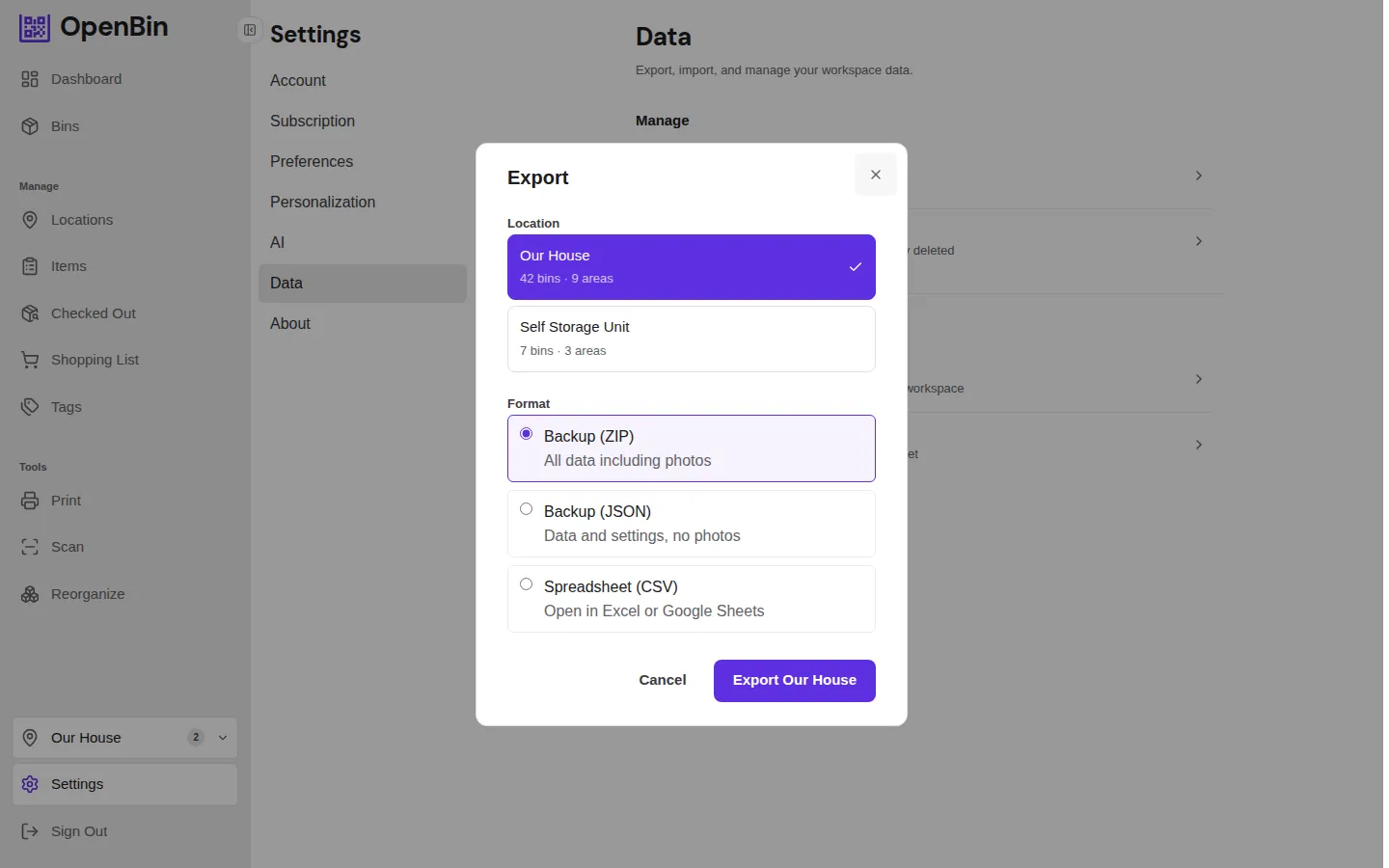
Export
Go to Settings → Data to access export options. Exports always include all bins in the currently active location.
JSON Export
Downloads a structured JSON file (openbin-export-<locationId>.json) containing:
- All bins (name, items with quantities, tags, notes, icon, color, card style, short code, area, visibility, custom field values, timestamps)
- Trashed bins (soft-deleted, recoverable on import)
- Areas (full hierarchy as path strings)
- Tag color assignments for the location
- Custom field definitions
- Pinned bins (per user)
- Saved views (per user)
- Members (id, email, role, joined date)
- Location settings (terminology, retention, default join role)
- Photos embedded as base64 strings inside each bin
JSON is the recommended format for full-fidelity backups. It preserves all metadata and photos. The export streams to disk so very large locations don't run out of memory on the server.
ZIP Export
Downloads a ZIP archive (openbin-export-YYYY-MM-DD.zip) containing:
| Entry | Contents |
|---|---|
manifest.json | Format version, export timestamp, location settings, members, areas, custom field defs, pins, saved views, tag colors |
bins.json | Array of all active bins (without photo blobs) |
trashed-bins.json | Soft-deleted bins (only present when there are any) |
photos/ | Original photo files in their native format, organized by bin |
ZIP is preferable when you want to preserve original photo quality without base64 encoding overhead.
CSV Export
Downloads a spreadsheet-compatible CSV file (openbin-inventory-YYYY-MM-DD.csv) with one row per item. Columns:
- Bin Name
- Area (full hierarchy path)
- Item (item name; blank when the bin has no items)
- Quantity (blank when no quantity is set)
- Tags (semicolon-separated)
CSV does not include photos, notes, or card style settings. Use it when you need to open your inventory in a spreadsheet application.
Export limits
The server enforces hard caps on each export:
- 5,000 bins per export (active + trashed combined). Use search filters or split into multiple exports if you exceed this.
- 1,000 total photos per export.
- 50 photos per bin.
Import
Go to Settings → Data → Import and drag-and-drop a file or click to select one.
Supported Import Formats
V2 JSON (current format)
Full-fidelity import. Restores:
- Bin name, items (with quantities), tags, notes, icon, color, card style, visibility, custom field values
- Tag color assignments
- Photos (re-attached from embedded base64 data)
- Short codes are re-generated to avoid conflicts with existing bins
V1 JSON (legacy format)
The older export format used freeform contents strings instead of discrete items. When importing V1:
- The
contentsfield is imported as the bin's notes. - Tags and timestamps are preserved.
ZIP
Import a ZIP file exported from OpenBin. The importer reads the JSON inside the ZIP and re-attaches the bundled photos.
Import Preview
Before any import runs, OpenBin shows a preview of what will happen. The preview lists how many bins, items, and photos will be created, and flags any bins that will be skipped (for example, duplicates that already exist in the location). You can review this summary and confirm or cancel before the actual import executes.
The preview is generated for all three import formats (JSON, CSV, and ZIP).
Import Behavior
- Import creates new bins — it does not overwrite or merge with existing bins.
- Bins are imported into the currently active location.
- Short codes are re-generated for all imported bins.
- If a photo fails to import (e.g. unsupported format or size limit exceeded), the bin is still imported without that photo and the failure is reported in the results summary.
File Size Limits
Limits depend on the file type:
| Format | Max size |
|---|---|
| JSON | 50 MB |
| ZIP | 25 MB |
| CSV | 10 MB |
For larger collections, split the export into multiple files.
TIP
Always export a backup before importing. Imports cannot be bulk-undone — you would need to manually delete the imported bins or use bulk delete.