
Checkouts
Items can be checked out of bins to track what has been temporarily removed. Each checkout records who took the item and when.
Checking out an item
Open a bin's detail page and find the item you want to take. Click the checkout icon (arrow) next to the item name. The item stays in the bin's list but appears crossed out with a label showing who checked it out and how long ago.
Checked-out items still count toward the bin's item total. They are not removed — just marked as out.
Viewing all checkouts
The Checked Out page lists every item currently checked out across the entire location. Access it from the sidebar navigation.
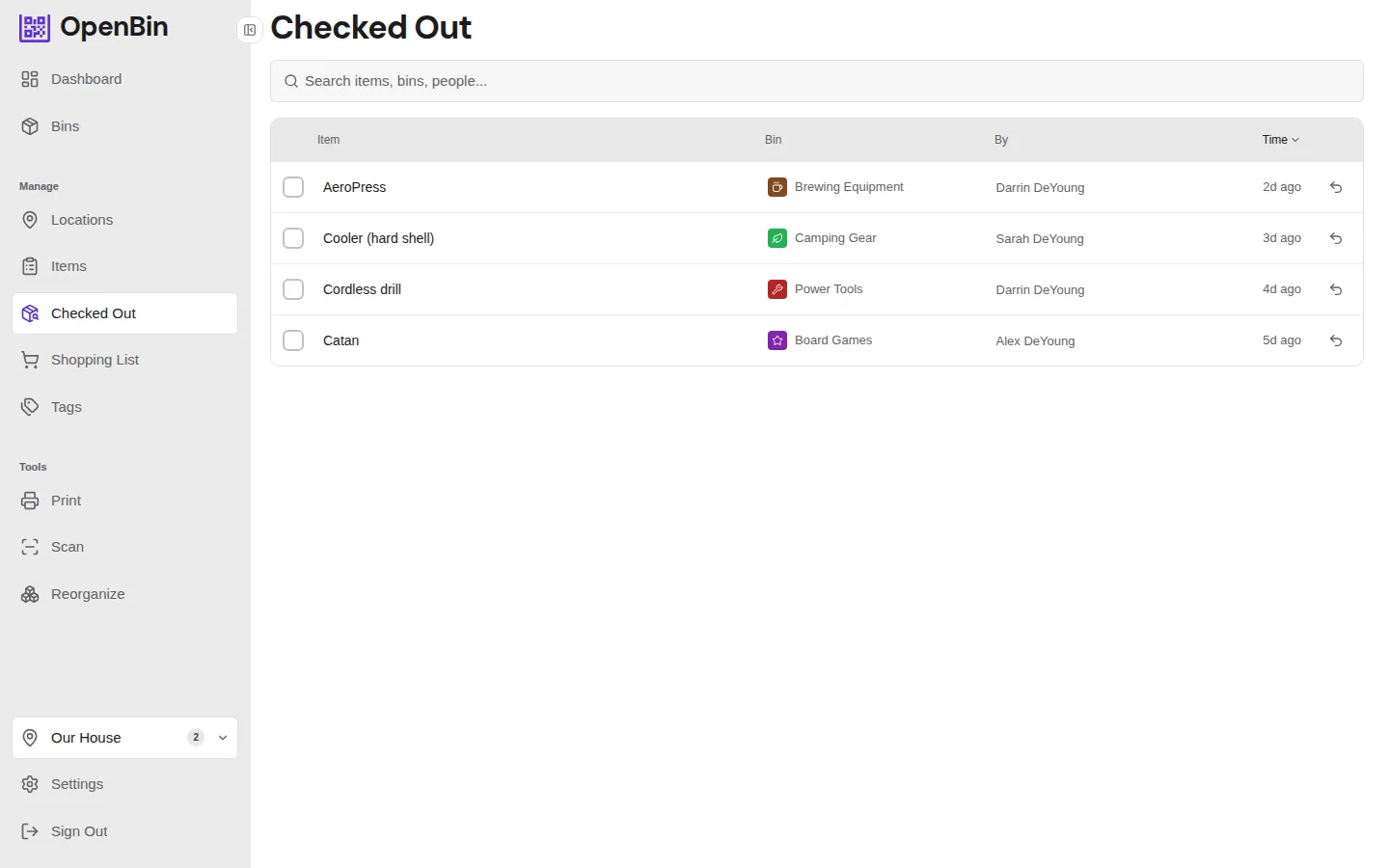
The table shows four columns:
| Column | Description |
|---|---|
| Item | The item name |
| Bin | Which bin the item came from, with the bin's icon and color |
| By | Who checked it out (hidden on mobile) |
| Time | How long ago the checkout happened |
Use the search bar to filter by item name, bin name, or person. Sort by item name (alphabetical) or by time.
Click any row to jump to the bin the item belongs to.
Returning an item
There are two places to return an item:
- From the bin detail page — find the checked-out item (shown with a strikethrough) and click the return button.
- From the Checked Out page — click the return icon on any row.
Both open a dialog with two options:
- Original bin — returns the item to the bin it was checked out from.
- Different bin — search for and select another bin. The item moves to the new bin on return.
Permissions
Checking out and returning items requires write access (Member or Admin role). Viewers cannot check out or return items.